
WorldFirst Developer Center User Manual
The WorldFirst Developer Center helps you integrate with WorldFirst products in a self-help way. You can integrate with WorldFirst by logging into the WorldFirst Developer Center and performing the following steps. If you face issues with logging in, contact WorldFirst Support Team for assistance.
Currently, WorldFirst Developer Center provides the following functionalities to the developers:
- Merchant login on to WorldFirst portal
- Merchant creates and manages client ID.
- Sandbox configuration.
- Accessing integration information for production, such as public/private key pairs.
- Accessing Developer Docs Center
- Integration with WorldFirst in the sandbox. performing acceptance testing with various tools.
- Publishing the application (the developer must be granted permission).
Visit https://developers.worldfirst.com.cn/ to get started with the WorldFirst Developer Center.
Integration process
Step 1: Become a developer
WorldFirst Developer Center shares the same login information with the WorldFirst portal. You can log in with your WorldFirst account. If you haven't registered yet, visit the WorldFirst portal to become a WorldFirst developer with ease.
Note: If you have already registered a WorldFirst account, it is suggested to register a sub-account as your WorldFirst Developer Center login.
Step 2: Create an application
Visit the create application webpage by clicking on the To create a new application option on the Home screen. Enter the necessary information about the application, including the Application Name and Application Description.

Figure 1. Create an application
Click on the Create button to confirm the process. A new application is enlisted on the Home screen together with a uniquely assigned Client ID. Other relevant information includes the AppID, Application status, Creation time, and user-determined Application description.
Note 1: WorldFirst published the sandbox application within the WorldFirst gateway by default. You can make inquiries about the API by calling the WorldFirst endpoint with a matching request URL. For Client ID of the production mode, the Merchant needs to complete the integration process and grant permissions from WorldFirst Technical Support Team before publishing the application.
Note 2: Currently, a user is limited to creating 5 client IDs at maximum.

Figure 2. WorldFirst application home screen
You can access the WorldFirst Documentations by clicking on the Documentation section on the right side of the screen.
Choose the Dashboard option on the top side of the screen to grant an overview of the newly created application. By default, the Dashboard shows information about the first application created chronologically.
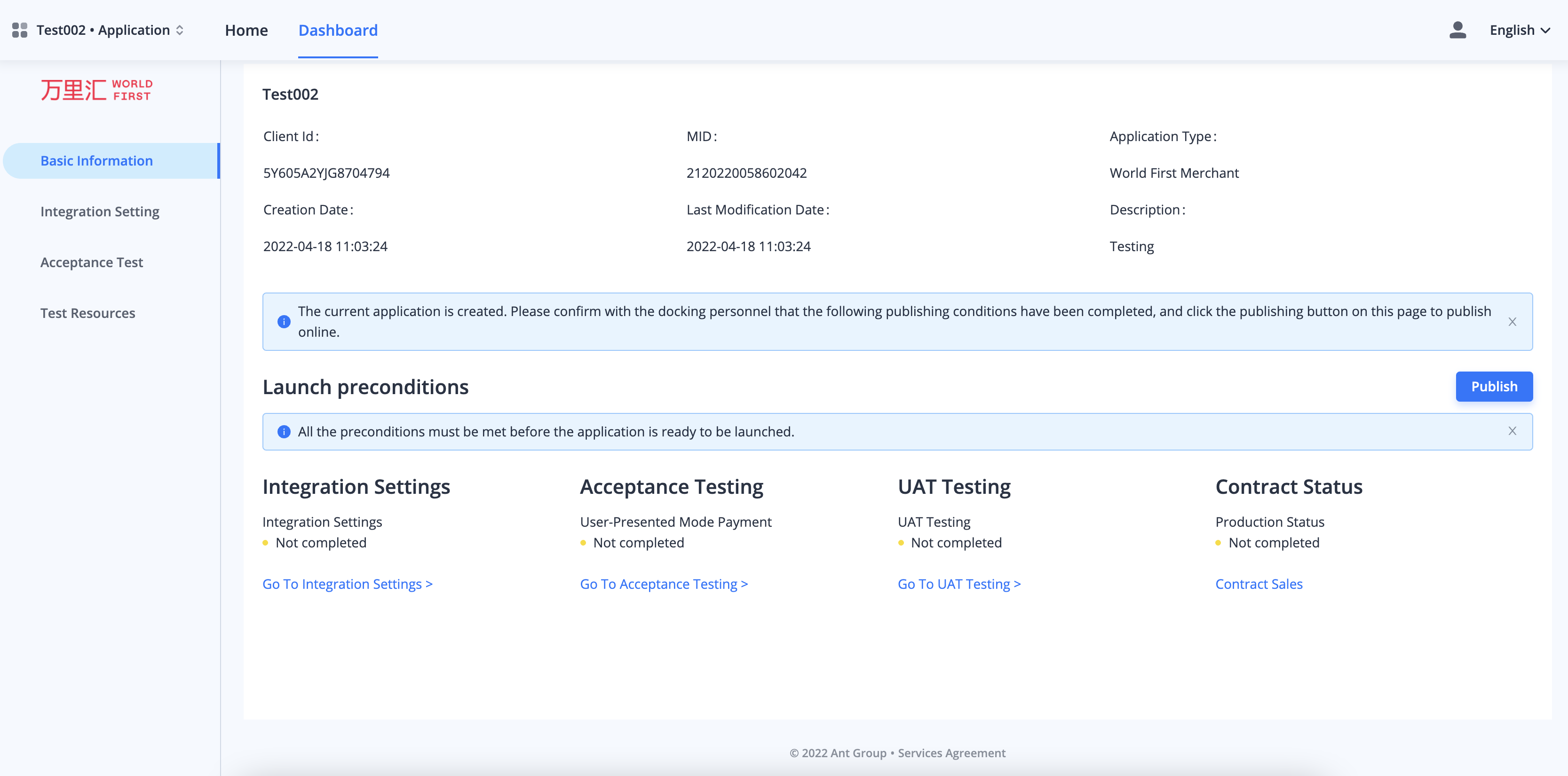
Figure 3. Check the application's basic information
You can also see all the created applications and their corresponding statuses on the Home screen of WorldFirst Developer Center. Click on the Switch applications option on the top-left corner of the screen to switch between multiple applications.

Figure 4. Switch between multiple applications
Step 3: Configure in the sandbox
On the Integration Settings page, you can check your sandbox Client ID, configure sandbox keys, and set the gateway URL for both the Sandbox and Production environment.

Figure 5. Integration settings page
To make your integration safer, WorldFirst uses asymmetric keys. You need to upload your public key to the WorldFirst Developer Center to get the WorldFirst public key.
Switch to the Sandbox tab. Click on the Edit Public Key button to set up the public key with WorldFirst, and follow the instructions on the pop-up window:
- Click on the Links on the screen to download the Alipay Signature Tool to generate an RSA2 key pair.
- Open the Alipay Signature Tool. Click on the New button to generate a new key pair. Click on the Validate button to validate the key pair.
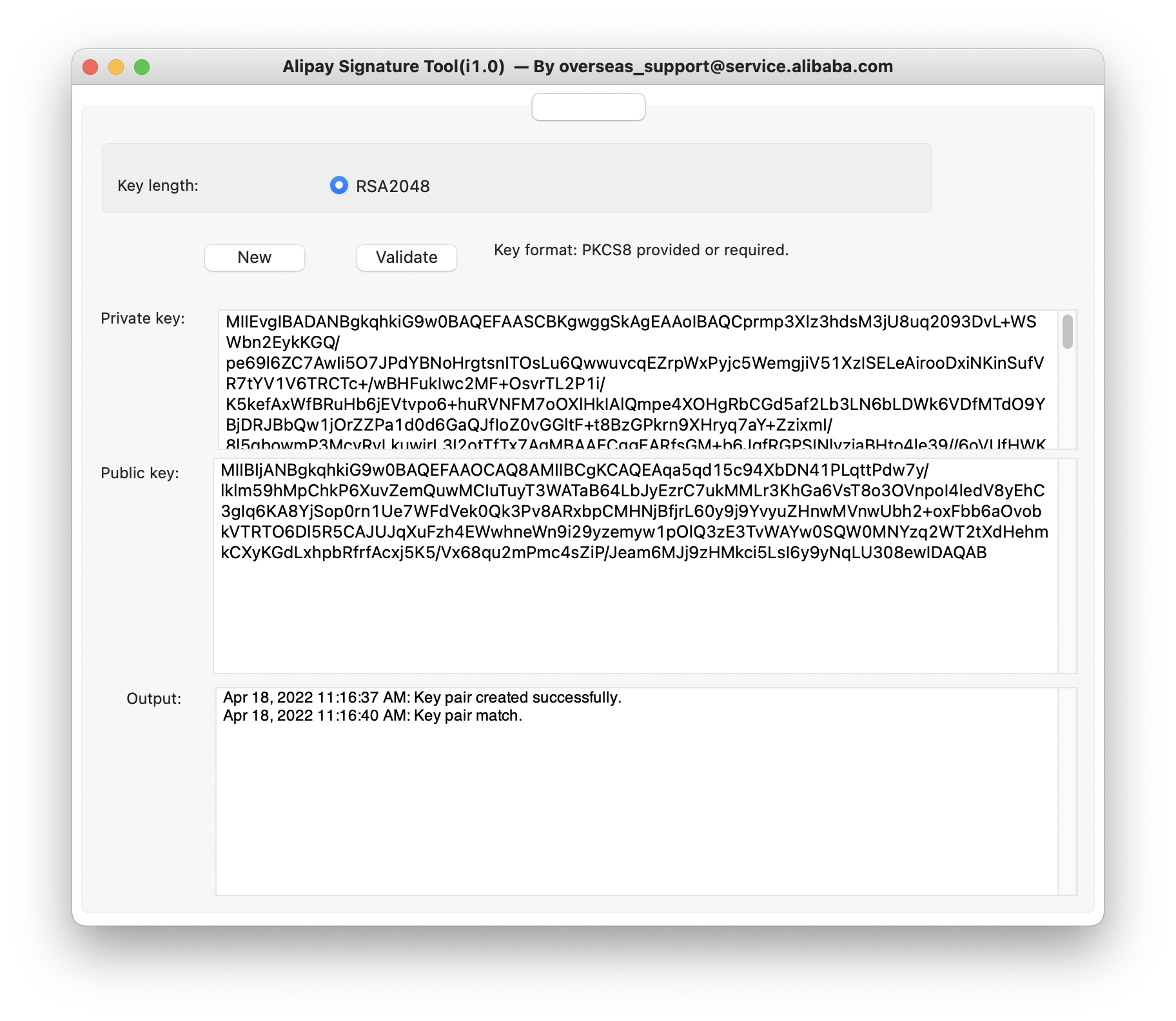
Figure 6. Generate a key pair with Alipay Signature Tool
- Switch back to the Integration Settings page, upload the public key and click on the Submit button.

Figure 7. Set the public key
- To view your own public key, click on the View button below the Your Public Key section.

Figure 8. View your own public key
- To access the WorldFirst public key, click on the View button below the Alipay+Public key section.

Figure 9. View the WorldFirst public key
Step 4: Test in the sandbox
After completing the integration process, you can configure APIs in the sandbox environment with iTest tools. Click on the Tools section on the left side of the screen and choose iTest to access the tools.

Figure 10. Use the iTest tools
You can configure the request with the following options:
- Choose the solution you desire to perform testing with.
- Select either Sandbox or Online for the API-Gateway option.
- Click on the circle-shaped button on the right side of the Request-Time option to generate a matching request time for the API request.
- Select POST for RequestMethod by default.
- Click on the drop-down menu on the right side of the RequestAPI option to choose the specific API you want to send a request with.
- Insert your private key to the textbox on the right side of the Private Key option.
Once you have finished the configuration and inserted your request body, click on the Send button to send the API request.
To access a detailed tutorial about how to generate a signature and sign the request, click on the Signing tutorial button on the right side of the Request body tab.

Figure 11. Signing tutorial
The tutorial includes steps such as:
- Generate the pre-sign string.
- Calculate the signautre.
- Assemble the request and send it to the WorldFirst server using the POST method.
The samples of the tutorial are written in JAVA.
After WorldFirst processes the request, a response is returned. Check the response body on the bottom side of the screen.
For more information about the API request such as the Request URL, Request Method, and Request Header, scroll down to check General and Request Header.

Figure 12. Check the additional information about the API request
If the request failed, an error code is returned in the Request body section.

Figure 13. Sample Response body for a failed request
Step 5: Go live & launch
On the Basic Information tab of the application that is planned to go live, click on the Publish button to proceed. Complete the process according to the on-screen instructions.
Note: The Merchant needs to be added to WorldFirst whitelist before the publish option is available.

Figure 14. Launch the application